Key Takeaways
- To add ads to an existing ad set, open it in Ads Manager, switch to the Ads tab, click Create, and build each new ad inside that same set.
- Duplicating an ad is faster than building from scratch, since the copy inherits the destination URL, CTA button, and settings, leaving only the creative to swap.
- Copy and paste moves an existing ad into a chosen ad set, which works well for pulling a proven creative from elsewhere in the account.
- Large batches go through Bulk Actions and the import template, with the ad set ID held identical across every row, up to Meta’s 50-ad ceiling per set.
- GetHookd surfaces which competitor Facebook ads are actively scaling, then turns a chosen ad into transcribed scripts and image variations to quickly fill a new ad set.
The Four Ways to Add Ads to One Ad Set
Facebook Ads Manager adds multiple ads to a single ad set through four routes: building each ad directly inside the set, duplicating an existing one, copying and pasting from elsewhere in the account, or importing a batch through Meta’s spreadsheet template. The right route depends mostly on volume, since building by hand becomes tedious well before a set nears Meta’s 50-ad limit.
The step most people skip is confirming the ad set as the active level before building. Skip it, and Ads Manager creates a brand new ad set for the ad instead of adding it to the intended one, splitting the budget and separating results that were meant to sit side by side.
Once the ad set is set up correctly, the harder part is usually keeping it stocked with creative that isn’t just the same ad wearing a new headline. GetHookd shortens that work by showing which competitor ads are pulling real traction right now, then turning any one of them into a ready script and a fresh set of image variations you can drop straight into the next ad set.

GetHookd: Turn Competitor Intelligence Into Your Next Winning Ad
GetHookd reveals which ads your competitors are actively scaling—not just running. Spy on their best-performing creatives, landing pages, and traffic strategies, then turn proven concepts into testable campaigns in seconds with AI-powered script generation and creative cloning.
What You Get:- ✓ Brand Spy to decode competitor ad strategies in real-time
- ✓ AI script generation and ad cloning for instant variations
- ✓ Performance scoring based on actual ad behavior, not vanity metrics
- ✓ Creative Analyzer to identify and scale your top performers
How to Create Multiple Facebook Ads in One Ad Set in Ads Manager?
Existing Facebook ad campaigns and ad sets must be published and approved before you can build new ads into them. Once that is done, the flow below adds as many ads as the set needs.
- Open the Ad Set at the Ad Level: Select the Ads tab in the top row of tabs, then click into the campaign and the ad set you want. The breadcrumb at the top of the screen should show that ad set as the active level, which is what tells Ads Manager where the new ad belongs. If the ad list looks empty, clear any active filters. Ads Manager applies filters from higher levels and hides anything outside them, which is the most common reason an existing ad set appears empty.
- Click Create & Name the Ad: The green Create button in the top left builds the new ad inside the currently selected ad set. Before building, confirm the campaign and ad set shown at the top of the creation flow; this is the quickest way to make sure the ad lands in the right place. Name the ad after the thing it tests, such as the hook or the creative angle. Generic names make the reporting table unreadable once the set holds four or five entries.
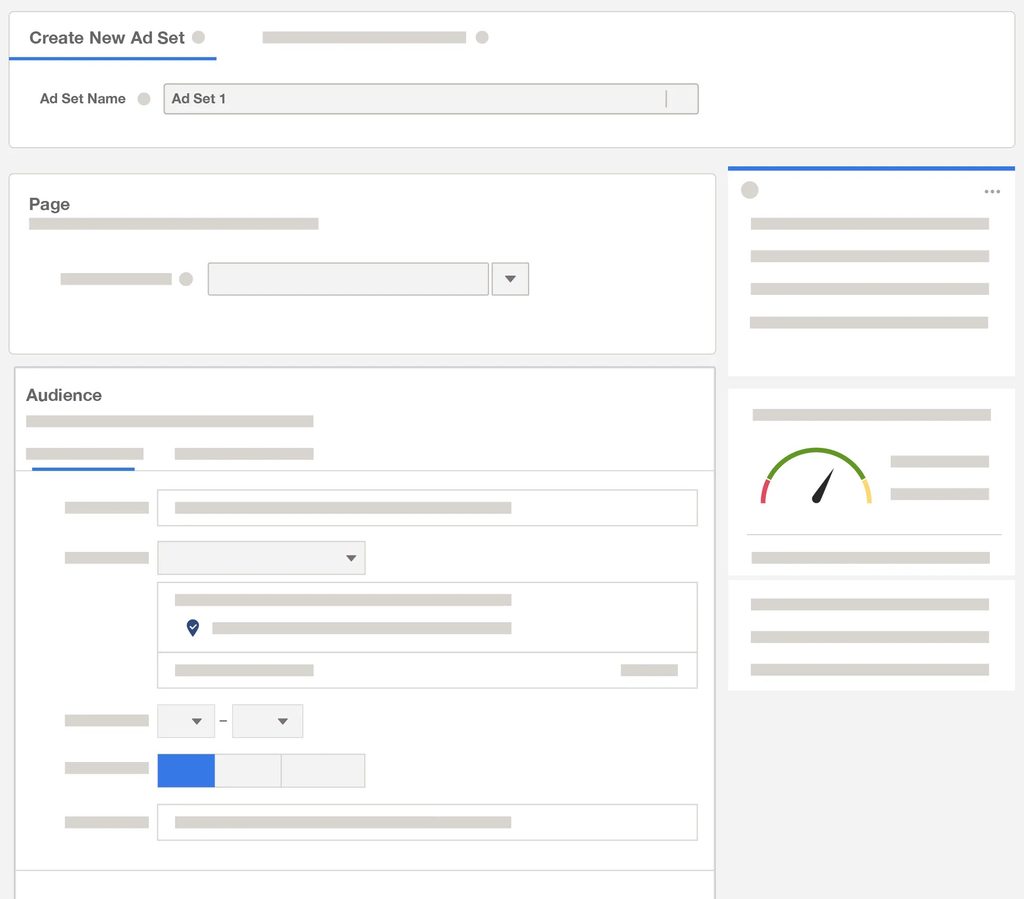
- Confirm Identity & Ad Setup: Under Identity, check that the correct Facebook Page and Instagram account are selected. Accounts managing several brands default to the last Page used, and selecting the wrong Page here means a published ad runs under the wrong name. Under Ad Setup, choose whether to create a new ad or use an existing post. An existing post carries over the likes, comments, and shares it has already collected, which a fresh ad starts without.
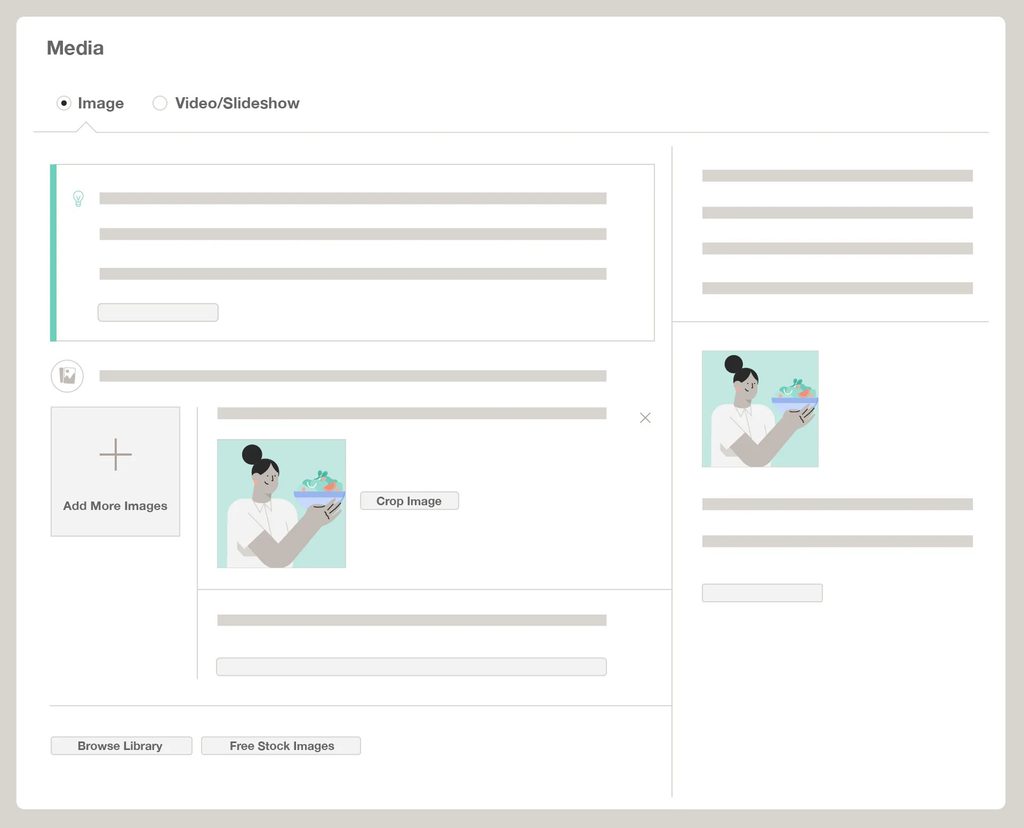
- Build the Creative & Publish: Upload the image or video, then complete the primary text, headline, description, and website URL. Select the call-to-action button that matches the offer rather than the default, since a mismatched button suppresses clicks from people who read it literally. Check the preview panel across Feed, Stories, and Reels before publishing. Vertical placements crop differently from square ones, and text near the edge of a square creative often disappears in Stories.
- Repeat for Each Additional Ad: Return to the Ads tab with the same ad set selected, then click Create again to add the next ad to that set. You don’t need to re-enter anything about the audience, budget, or schedule, because those settings live at the ad set level and stay fixed across every ad in the group.
How to Duplicate an Ad Into the Same Ad Set?
Duplication is faster than building each ad when the variations share a destination and offer. The copy inherits every field, leaving one element to change.
- Select the Ad & Set the Destination: Hover over the ad in the Ads tab and click the Duplicate icon in the toolbar, or use Ctrl+Shift+D on Windows and Command+Shift+D on Mac to open the duplication panel; plain Ctrl+D quickly duplicates without it. In the panel, set the destination to the same campaign and the same ad set rather than accepting the default. Filters apply here too, so an ad that doesn’t appear in the list is usually hidden by a higher-level filter. Clearing them and confirming the date range brings it back.
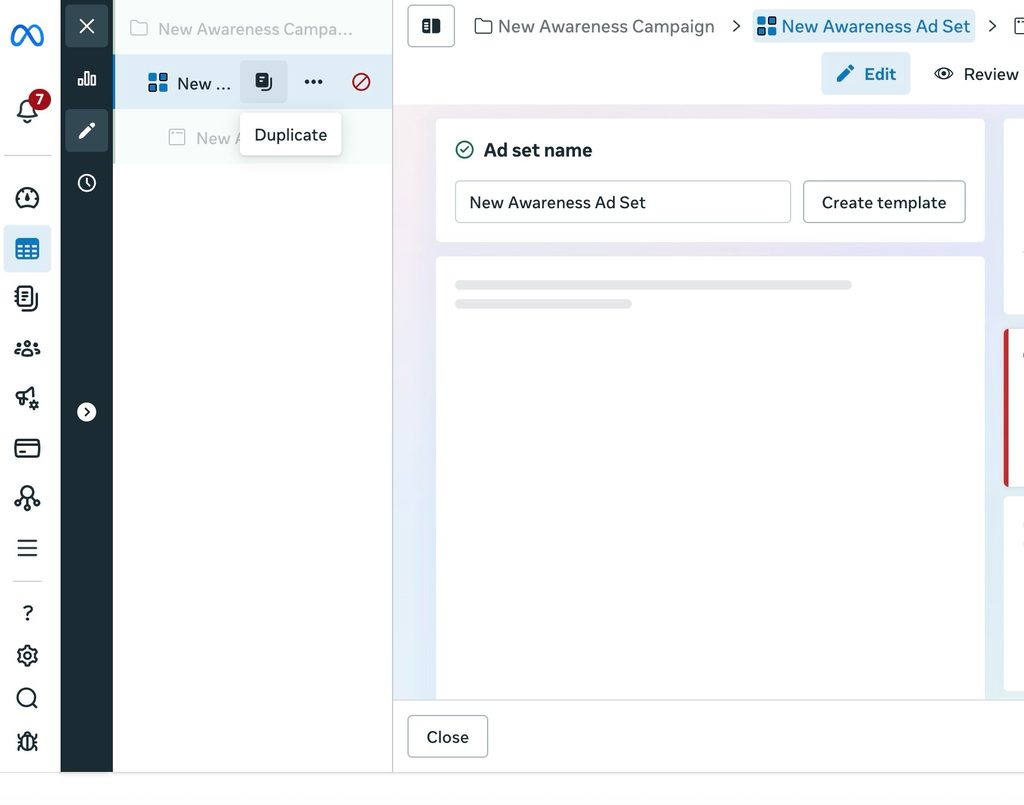
- Choose the Number of Copies: The panel accepts a number of copies, and confirming creates them all in one pass. Three copies of a working ad give four total in the set, produced in a single action rather than four separate builds. Creating copies in a paused state is worth the extra click on larger batches. Paused copies can be edited and reviewed before any budget moves through them.
- Edit & Rename Each Copy: Open each copy and change one element: the image, the hook in the opening line of primary text, or the headline. Everything else stays as inherited, which is the point of duplicating rather than building. Rename each copy at the same time. Left alone, the set fills with entries ending in “copy,” and the reporting table stops telling you which variation is which.
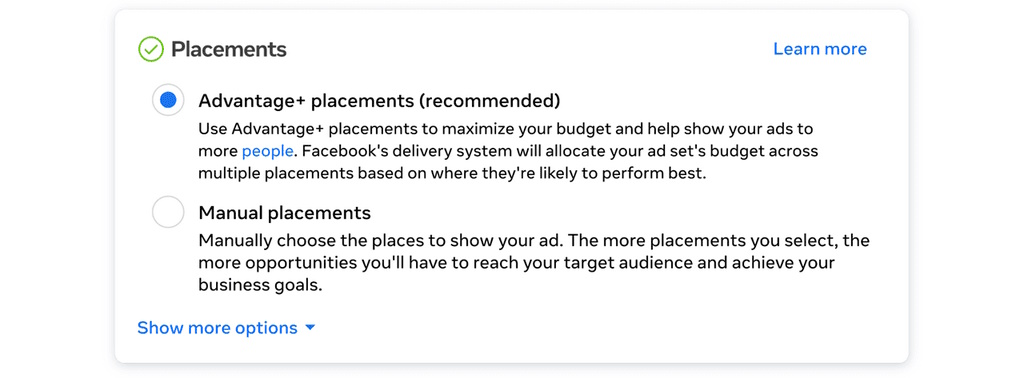
- Check What Duplication Resets: Social proof resets on a duplicated ad unless you switch on the Show existing post engagements on duplicated ad toggle in the duplication panel, or launch the copy against the same post ID. On creatives with meaningful engagement, that reset can cost more than the time duplication saves. Placements sit at the ad set level, so an ad duplicated into the same set inherits them unchanged. The Advantage+ default only resurfaces when you duplicate the ad set itself, so check before publishing to ensure the copy doesn’t quietly run across inventory the original excluded.
How to Copy & Paste an Ad Into an Ad Set?
Ads Manager also supports duplicating ads through copy and paste, which suits pulling a proven creative in from a different campaign rather than producing variations of one already in the set.
Select the ad in the Ads tab, copy it, then navigate to the destination ad set and paste. When the paste dialogue lets you choose between the original settings and the destination’s, choose the destination’s to match the others in the set.
The pasted ad arrives as a new ad with its own ID. Its performance history stays with the original, so it starts from zero in the new set regardless of how the source ad performed.
How to Add Multiple Facebook Ads in Bulk?
Meta caps a single ad set at 50 ads, and building anywhere near that number by hand is slow and error-prone. Meta’s spreadsheet workflow handles those batches instead, across one or several ad sets.
- Download the Import Template: Open the hamburger menu, select Bulk Actions, then Import Ads, and download the official CSV template. Building a file from scratch rarely works, because the importer matches on exact column headers.
- Keep the Ad Set ID Identical Across Rows: Each row represents one ad. Keeping the ad set name or ID identical across every row is what lands the whole batch in a single set rather than scattering it across new ones. Put headline variations in the headline column, matched to the corresponding primary text and creative IDs in the same row. Mismatched rows are the usual cause of ads publishing with the wrong copy attached.
- Review Before Publishing: Upload the completed file and read the import summary before anything goes live. Importing in a paused state gives you time to check creative approvals, destination URLs, and placement settings while spend is still at zero.
Fill Your Facebook Ad Sets Faster with GetHookd
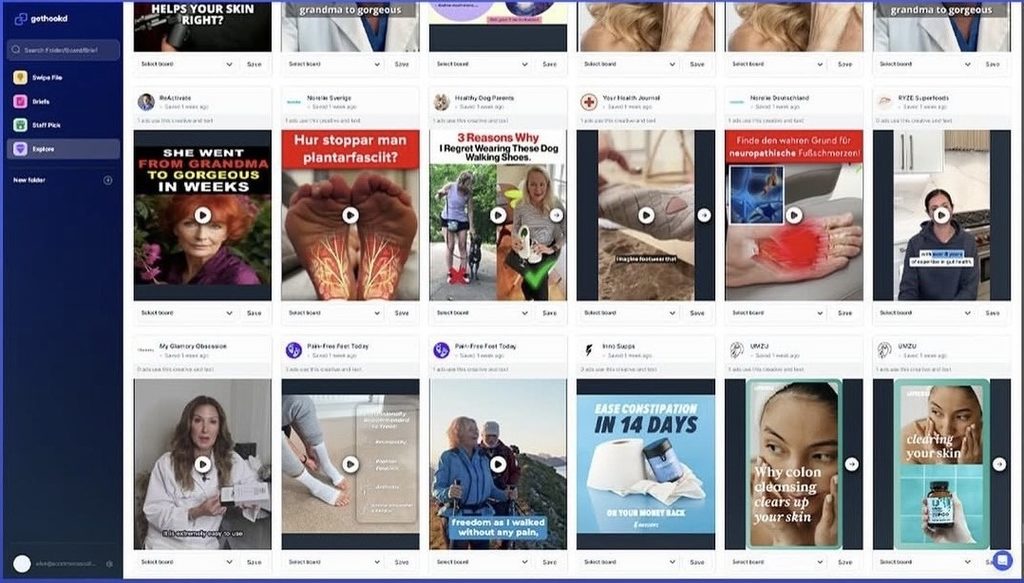
The build is quick once you select the ad set as the active level. Supplying the creatives is the slower part, since every ad added to the set needs its own image, hook, or headline rather than a repeat of the one already running.
At GetHookd, we shorten that step by showing which Meta ads competitors are actively scaling, then turning a chosen ad into transcribed copy and publishable image variations. If creative supply is what holds up your next ad set, start your 7-day free trial and build it from angles already working in your niche.
Frequently Asked Questions (FAQs)
Can ads in the same ad set have different destination URLs?
Yes. The ad set controls audience, budget, placements, and schedule, while the destination URL sits at the ad level. Each ad can point to a different landing page, though changing creative and destination at once makes results harder to attribute.
How many ads can you have in one ad set?
Up to 50 ads per ad set. Meta currently caps an ad set at 50 ads. This is a maximum, not a recommended number; having 50 ads does not mean you should run 50 simultaneously.
How long do Facebook ads stay in the learning phase?
Facebook ads typically stay in the learning phase until Meta collects enough data to optimize delivery, often around 50 optimization events within seven days. Once the ad set receives enough data, it can exit the learning phase and enter Active status. If it does not generate enough optimization events, it may stay in learning longer. The actual duration varies with conversion volume and campaign settings.
Can I move an ad from one ad set to another?
Not directly. Ads Manager has no move function, so the workaround is to duplicate or paste the ad into the destination ad set and pause the original. The new ad starts with no delivery history.
Do I need technical skills to use GetHookd?
No. GetHookd runs entirely in the browser, with no setup or code required. The platform searches 65M+ analyzed ads across Meta, writes scripts, and generates image variations from competitor ads you upload, so research and creative happen in one session.
*Note: Pricing and/or product availability mentioned in this post are subject to change. Please check our website for current pricing and stock information before making a purchase